
What Loom actually makes
Atlassian's launch announcement describes a recording mode that captures narration, screen context, clicks and visited links, then turns them into instructions for another agent. Its support guide says the generated tasks typically include a title, bulleted instructions, a transcript quote, visual references and timestamps.
That distinction matters: the recording produces an agent prompt. It does not, by itself, establish that the website changed or the presentation is finished. The receiving AI still needs the right tools and access, and someone needs to check its work.
The beta is available on Loom Business + AI and Enterprise plans through the Chrome extension and desktop app version 2.0 or later; Atlassian's launch materials specifically point to the new Mac app. Recordings are limited to five minutes, with the camera automatically off. In the Mac app, the Selection tool pins an element and the Magic pen lets you draw attention to an area.
Give it a request, not a tour
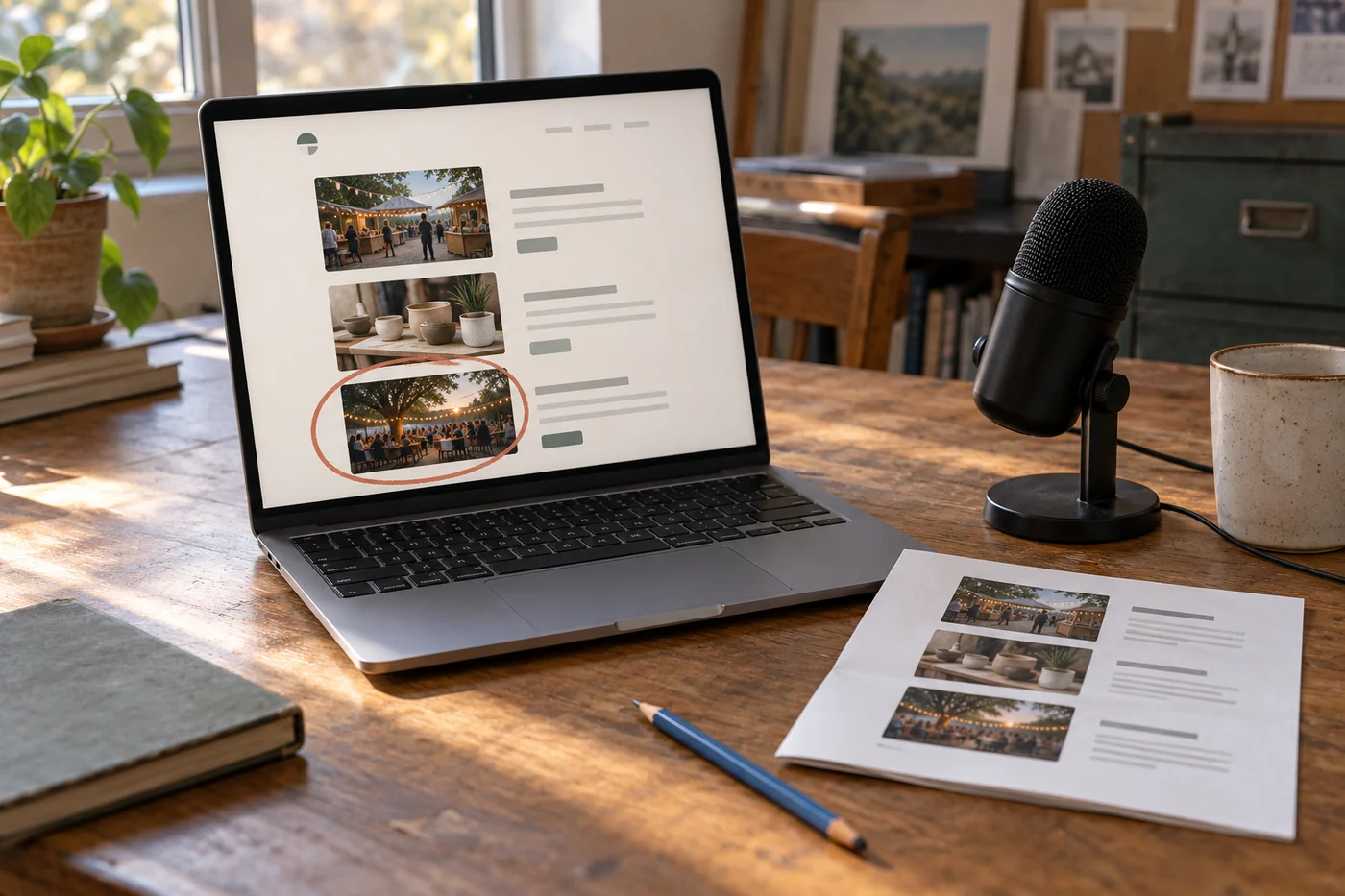
For a first attempt, use a non-sensitive draft page or example project. Open the relevant view before recording. Show the misplaced photo, point to where it belongs, and say what should stay as it is. A useful spoken request might be: ‘Move this pottery photo to the afternoon session. Keep the session times and booking links unchanged. Prepare a draft for me to review; don't publish it.’
Those last instructions are part of the brief, not a substitute for restricting the receiving agent's permissions. If you only want a draft, don't give it unrestricted publishing access for the experiment.
In the Chrome extension, Atlassian documents Generate → Record for agent → Start recording. After stopping, open the generated Action Plan on the share page. Read that before handing it off. Did ‘move this photo’ become a redesign? Did the instruction to leave the booking links alone survive? Fix the brief there rather than discovering the misunderstanding in the finished page.
You can copy the prompt for use in another tool. The documented Send to agent menu can launch a supported tool with the prompt filled in, or copy it for terminal tools. Creating Jira work items has an extra eligibility condition: an Atlassian-managed account with an active Jira subscription. You don't need to turn a small request into a Jira project just to try the copied prompt.
The recording captures more than your voice
The support guide lists transcripts, keyframes, click events and visited URLs among the captured data. For the Chrome extension it also lists console messages and network request/response metadata. Treat this as a richer capture than a spoken note.
Before recording, close unrelated material and use a demonstration account where possible. Review what you're sharing, who can open the recording, and which AI service will receive the prompt. A clean-looking screen alone doesn't tell you everything included in the accompanying metadata.
The launch post and product documentation establish what Atlassian says the feature does. They do not prove that your team will save time, or that a receiving agent will obey every instruction. This article is a source-based guide, not a hands-on review.
When I'd reach for it
A visual correction spread across a couple of screens is a good candidate: the wrong image, a confusing sequence, or a page that should match an existing example. A one-sentence wording change probably isn't. Typing the replacement sentence may already be the easiest route.
For the workshop page, success would be a draft with the photo in the right place and the booking details untouched, without several rounds of explaining which image you meant. If the recording becomes a long performance you rehearse before pressing Start, send the short written request instead.